Introduction: The Power of a Well-Crafted Survey
Welcome to this hands-on workshop on creating effective and ethical surveys using Google Forms. Over the next hour, you will build a complete and functional survey prototype from start to finish. This session is designed not only as a technical tutorial on Google Forms but also as a practical lesson in responsible data collection. To ensure the exercise is relevant and engaging, the workshop will focus on developing an online survey regarding housing affordability among young Australians, the research topic for this unit.
The design of a survey is fundamental to the quality of the data it produces. A survey that is confusing, untrustworthy, or frustrating to navigate not only appears unprofessional but also compromises the integrity of the collected data. Respondents faced with a poorly constructed form are more likely to abandon it midway or provide rushed, inaccurate answers. This establishes a direct and critical link between the technical aspects of survey construction—such as writing a clear introduction, using a logical flow, and providing a courteous closing—and the ultimate validity of any research findings. I assume you learned the principles covered in this workshop from the lecture, and these principles are foundational to conducting sound, credible research.
Module 1: Getting Started – Your Survey’s Foundation
1.1 Accessing Google Forms
Google Forms is a simple, web-based application for creating online surveys, polls, and quizzes, which stands out from competitors like the more advanced Qualtrics or the popular SurveyMonkey primarily due to its distinct advantages. The key benefits of using Google Forms are that it is entirely free for anyone with a Google account, offering unlimited surveys and responses without any subscription fees. Furthermore, it is exceptionally user-friendly and integrates seamlessly into the Google ecosystem, automatically collecting response data in Google Sheets for straightforward analysis and visualisation.
The most direct and efficient method for initiating a new survey is to navigate to the Google Forms web application. Although it is possible to create a new form from within Google Drive or Google Sheets, these methods add extra steps that can waste valuable time in a workshop setting. By starting directly from the source, users can focus immediately on creating the form.
Step-by-step instructions:
- Open a web browser.
- Navigate to the address:
forms.google.com.
1.2 Creating a New Form
Upon arrival at the Google Forms landing page, users are presented with options to start from a pre-made template or a blank form. While templates can be useful for specific, common applications like event feedback or contact information gathering, building a survey from scratch is the most effective way to learn the core mechanics of the platform. This approach ensures a thorough understanding of how to add and configure each element of a survey.
Step-by-step instructions:
- On the Google Forms landing page, locate the “Start a new form” section.
- Click on the large tile labelled Blank form, which is typically represented by a plus sign inside a multi-coloured rectangle (see Figure 1).
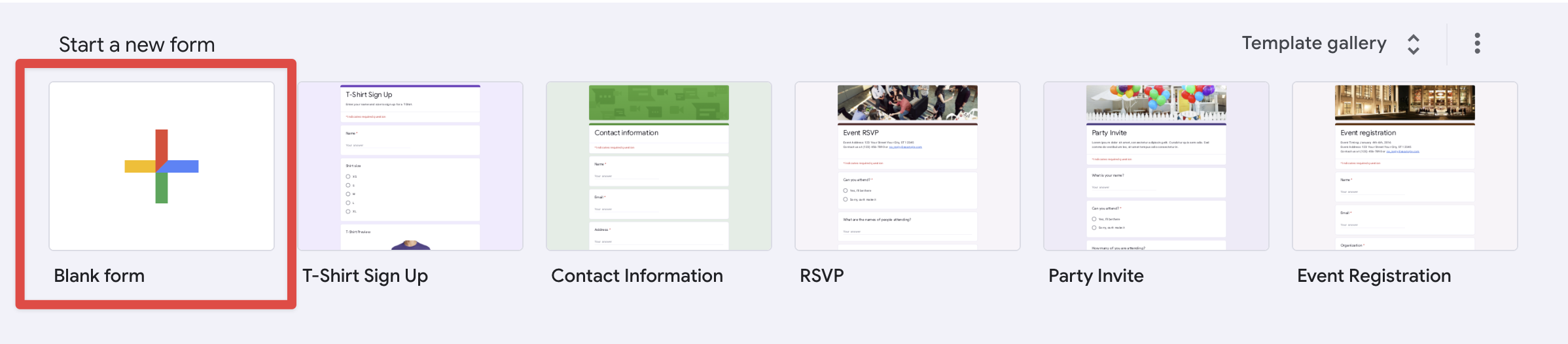
Figure 1: Creating a New Form
1.3 Titling Your Survey
Once a blank form is created, the first step is to give it a clear and descriptive title. Google Forms has two primary title fields: an internal file name visible only to the creator within Google Drive, and a public-facing title that will be seen by all respondents. It is best practice to make these titles identical for clarity and organisation. A well-chosen title immediately informs the respondent of the survey’s purpose.
Step-by-step instructions:
- Click on “Untitled form” in the top-left corner of the page. This is the internal file name. Type a descriptive name, such as “Housing Affordability Survey for Young Australians (see Figure 2).”
- Click on the larger “Untitled form” text in the main body of the form editor (see Figure 2). Google Forms will often auto-populate this with the file name just entered. If not, type the same descriptive title here. This is the title your respondents will see.
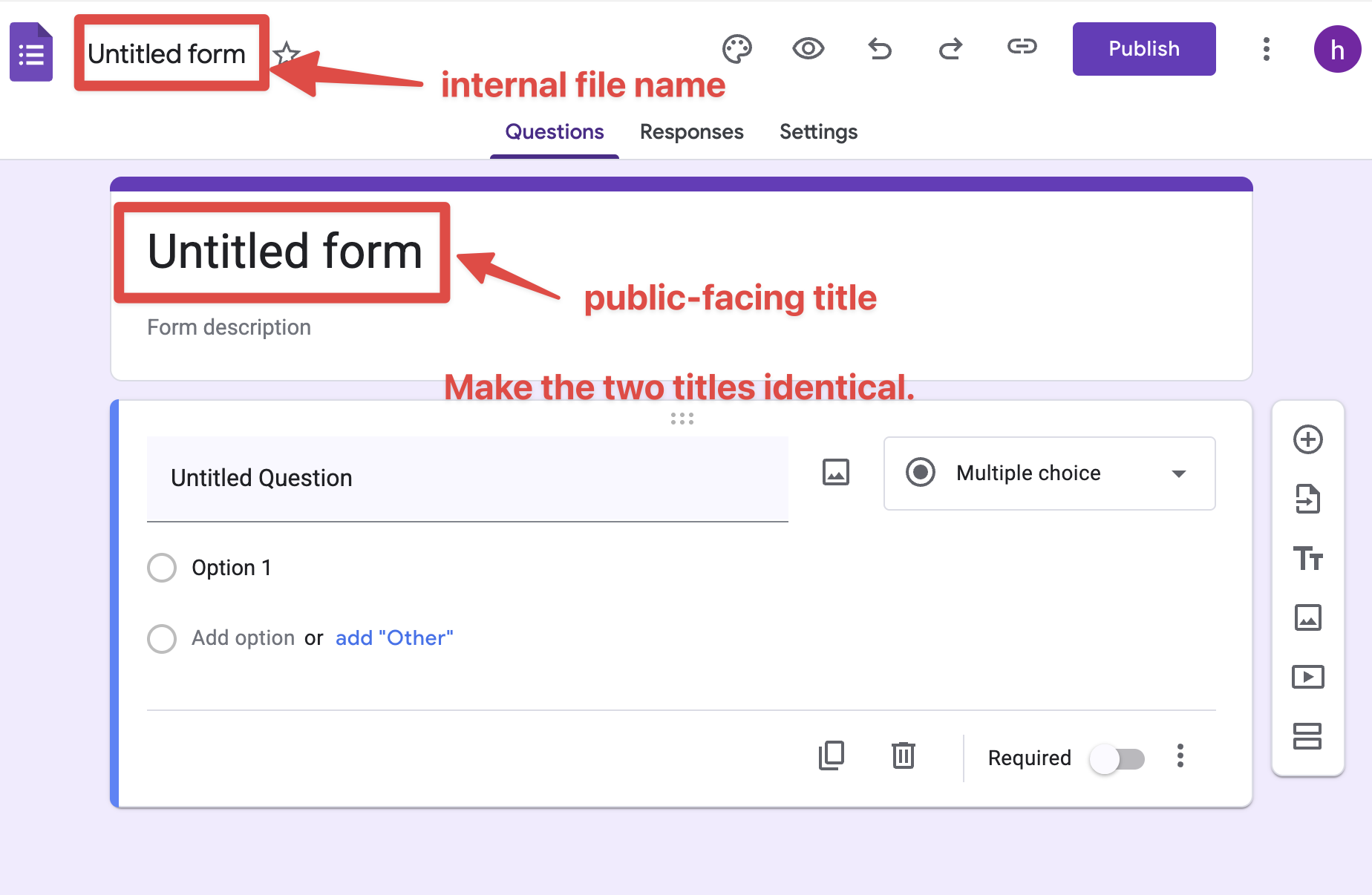
Figure 2: Titling Your Survey
Module 2: Building Trust – Crafting an Ethical Introduction
2.1 The Critical Role of an Informed Consent Introduction
In formal research, the survey’s introduction serves as the digital equivalent of an informed consent form. Its purpose is to provide potential respondents with all the necessary information to make an autonomous and informed decision about whether to participate. This is especially crucial when dealing with sensitive topics like personal finances and housing stress. A transparent, ethical introduction is the primary mechanism for building trust, which directly encourages more honest and complete responses.